How to Use the Live Telemetry Tool
Forza Horizon 6 streams telemetry natively, so there's nothing to install. Point the game's built-in Data Out feed at our website and you can mathematically dial in gear ratios, final drive, and launch setup for the exact race you want to win.
Not Receiving Data? Common Fixes
Setup works for the vast majority of players. When data doesn't come through, it's almost always one of these four things:
- You're on a VPN or your IP changes often. The tool ties your session to your public IP address. If a VPN rotates it - or your ISP hands you a new one mid-session - the game's stream no longer matches. Turn the VPN off (or keep it on a stable exit) while you use the tool as we look for a solution for changing IPs.
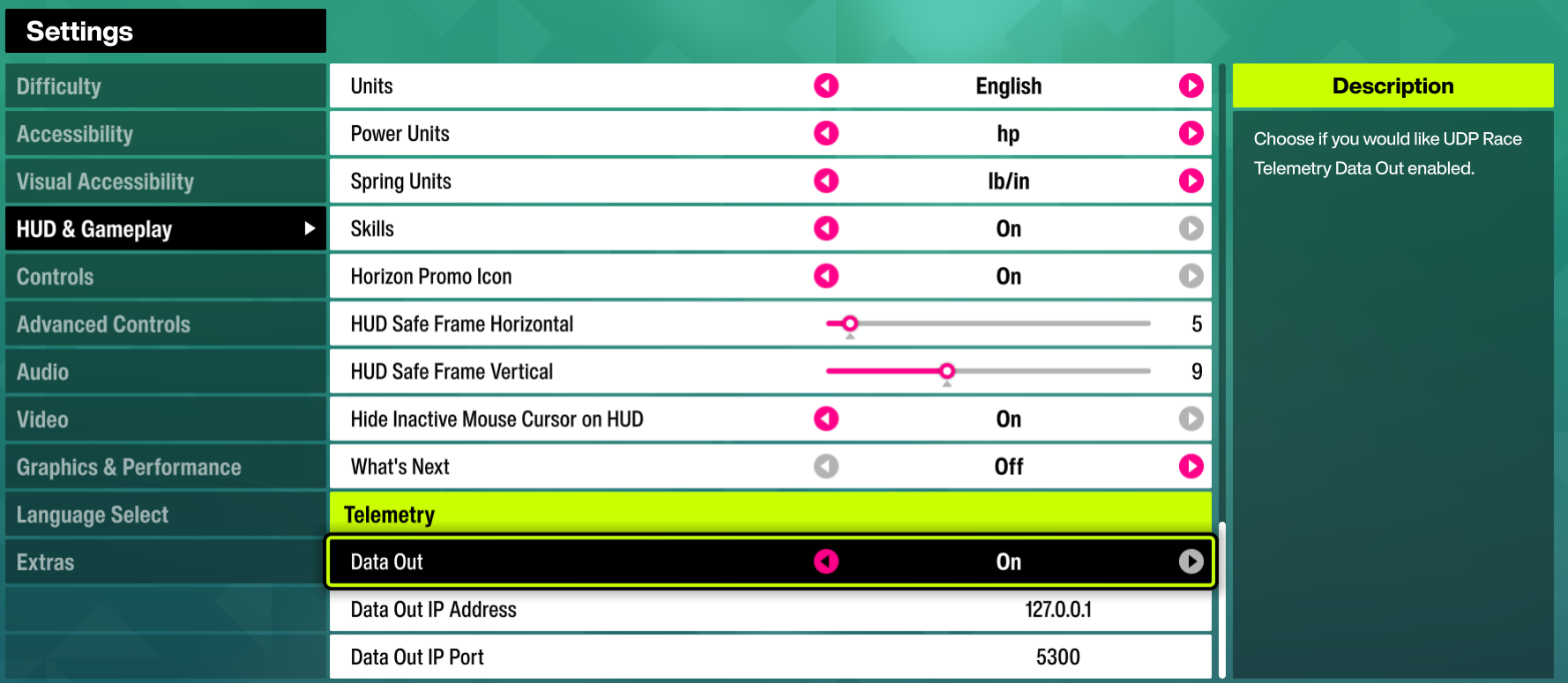
- Data Out isn't actually turned on. It's a separate switch at the bottom of HUD Settings. Entering the IP and port alone isn't enough - the Data Out toggle has to be set to On.
- You haven't selected your session. The tool automatically connects the game's stream to your browser by public IP by default. If you are on a browser on a different network you'll need to manually select the sender on the telemetry page. Once data starts flowing, open Select Sender on the tool page and pick your session; if more than one shows up, choose the one matching your expected IP.
- A firewall is blocking the outbound port. This is a very unlikely scenario, but a very strict network or firewall blocking the outbound telemetry port the tool gives you will stop the stream from your machine before it ever leaves your network.
Frequently Asked Questions
What does the Live Telemetry Tool do?
It reads the live data Forza Horizon 6 broadcasts about your car - speed, RPM, horsepower and torque, gear, tire temperatures and slip, suspension travel, and your position on the map - and turns it into tuning math. It captures your power curve and acceleration runs to calculate the exact gear ratios, final drive, and launch (1st and 2nd gear) settings for the race you're building for, alongside live dashboards for braking, motion, and per-tire behavior.
Do I need to install anything?
No. Forza Horizon 6 streams this telemetry natively through its built-in Data Out feature. You just turn Data Out on in the game's HUD settings and point it at the IP and port the tool shows you - there's no app, mod, or download.
Is anything installed or stored on my device?
No. Nothing is installed, and the tool runs entirely in your browser tab while the game streams to it. Close the tab any time to stop the session.
Which devices and platforms work?
Any setup where Forza Horizon 6 exposes the Data Out toggle under HUD Settings. The tool matches your session by public IP address by default automatically. If you are running the website on a different network than your gaming device you'll need to manually select the sender. Once data is sending to our website, pick your session under Select Sender in the top section on the live telemetry page.
How do I run an acceleration test?
Open the Acceleration Optimization tab and enable launch control, then from a standstill hold the handbrake and full throttle and release. Timing starts the instant the car moves and the tool collects data automatically as you accelerate - 0-60 and 0-100, quarter-, half- and full-mile times, and a split at every 25 mph increment, alongside per-tire slip and suspension compression.
How do I use the acceleration results to finish my tune?
After your gearing is optimized, use the per-tire slip to rebalance the acceleration differential - if the rear holds traction while the front slips, move more power to the rear - and watch the suspension compression for anything alarming. Run the test again against your stock tune to confirm the improvement; small launch and power-range gains add up to tenths of a second over a full mile.
Why isn't the tool receiving any data?
Almost always one of four things: a VPN or frequently-changing IP address, the Data Out toggle not actually switched on, not having picked your session under Select Sender, or a strict firewall blocking the outbound telemetry port. See the Common Issues section above for the fix for each.
Everything the Live Telemetry Tool Does
Launch, gearing, and acceleration are just three of the dashboards. Every packet Forza Horizon 6 streams feeds a full suite of live readouts, so you can diagnose, tune, and validate every part of the car from one browser tab - no install, ever. In our own testing, dialing a car in this way cut over 210 milliseconds off a full-mile run versus the stock tune.
Launch Optimization
The mathematically cleanest 1st and 2nd gear for your car, so you put power down off the line instead of spinning up the tires.
Gear Optimization
Exact gear ratios and final drive computed from your real horsepower/RPM curve to keep you in the power band the whole pull.
Acceleration Testing
Real 0-60, 0-100 and quarter-, half- and full-mile times with a split every 25 mph, so you can measure each change instead of guessing.
Live Dashboard
Speed, RPM, gear, power and torque, throttle and brake, and G-forces in real time - the direct readouts plus the calculated values Forza never shows you.
Power Curves
Your full horsepower and torque curve across the rev range, captured from real runs and estimated where you haven't pulled yet, so you know exactly where your engine makes its power.
Per-Tire Analysis
Live slip and temperature for all four tires, with history, so you can see exactly which corner is breaking traction and rebalance the differential.
Suspension Analysis
Compression and travel per corner through the run, so you can catch the spots that need a damping or ride-height change before they cost you time.
Braking Simulation
Full straight-line stopping data so you can dial in brake balance and pressure for the shortest stop possible.
Motion & G-Forces
Lateral and longitudinal motion vectors that show how the car loads and rotates - the data behind why it feels the way it does.
Live Map Overlay
Your position traced live on the full Forza Horizon 6 map, so you can tie telemetry events to exact points on the road.
Auto-Flagged Events
The tool watches for near-limit, high-demand moments and flags them automatically, so real tuning problems surface without false alarms from normal cruising.